Showing and Exporting Phase Profiles
This tutorial explains how to visualize the assigned RIS phase profiles for each RIS target point, display the overall reflection coefficient phase profile, and export them as .json files.
Note
Before executing this step, you must first compute and visualize the transmitter-only coverage map. Please follow the Computing Transmitter-Only Coverage Map tutorial beforehand.
Define RIS Target Points
There are two ways to define the RIS target points:
Using the Target Points from Clustering:
Note
To use this option, you must first run the clustering algorithm to compute target points. Refer to the Finding RIS Target Points via K-means Clustering tutorial before proceeding.
In the GUI, select the radio button “Use the target point(s) found via clustering algorithm”.
Manually Entering Target Point Coordinates:
Go to the labelframe “Manual trials” on the left side of the GUI.
Enter the number of RIS target points in the field “Number of target points”
Select the checkbox “Enter the target point(s) manually”.
A new input area will appear at the bottom of the same labelframe.
Enter the x, y, z coordinates for each target point manually.
Enter RIS Parameters
Set the RIS center position under the labelframe “Enter RIS center position (m) (x,y,z)”.
Set the RIS height and width under “RIS height (m)” and “RIS width (m)”, respectively.
Note
To determine feasible RIS positions in the scene, refer to the Computing Feasible RIS Positions tutorial.
Choose Phase Profile Approach
Select the desired phase profile approach from the dropdown next to the textlabel “Choose phase profile approach”.
If “Manual entry” is selected:
A new menu appears near the menu with the labelframe “Select manual phase profile file (.json)”.
Click the “Browse” button to select the phase profile .json file.
Show and Export Phase Profiles
Press the button “Show and export phase profiles”.
After execution:
The phase profiles for each RIS target point are visualized in both 3D and 2D formats.
The overall reflection coefficient phase profile is also displayed.
The results are exported into two .json files: phase_profiles.json (individual target point phase profiles) and overall_reflection_coefficient.json (overall phase profile)
An example scenario consisting of two RIS target points is shown below:
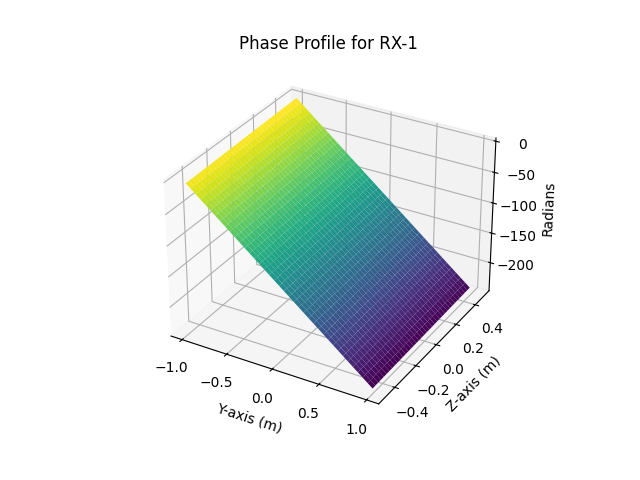
Fig. 1: Phase profile for RX-1 with 3D visualization
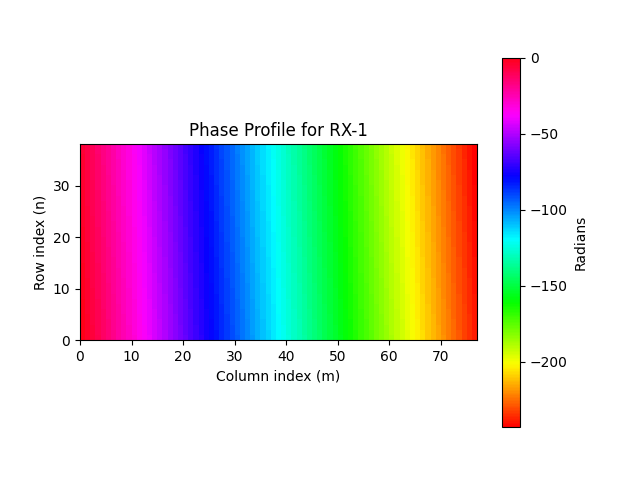
Fig. 2: Phase profile for RX-1 with 2D visualization
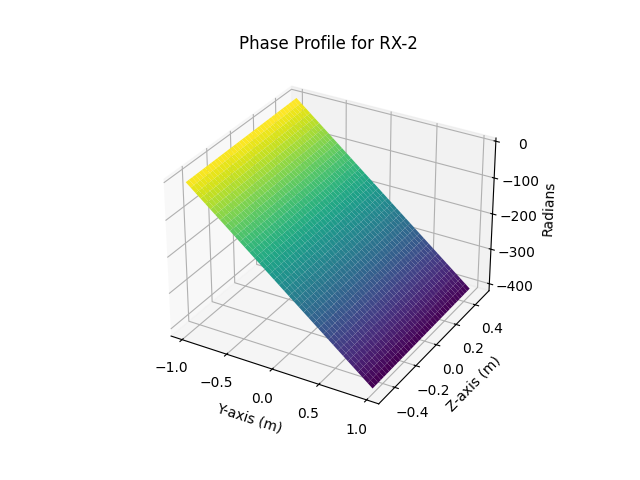
Fig. 3: Phase profile for RX-2 with 3D visualization
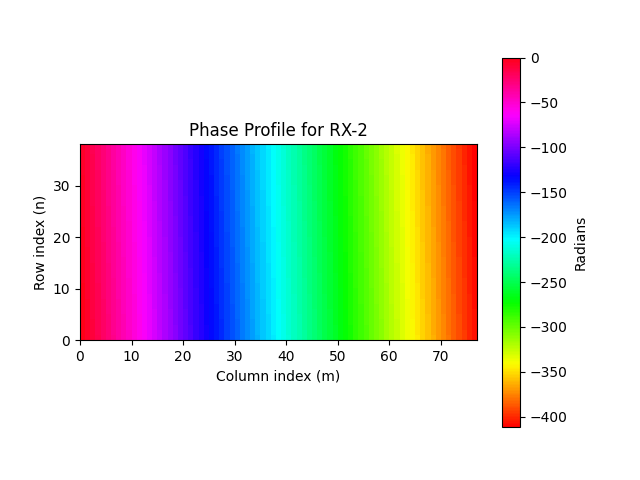
Fig. 4: Phase profile for RX-2 with 2D visualization
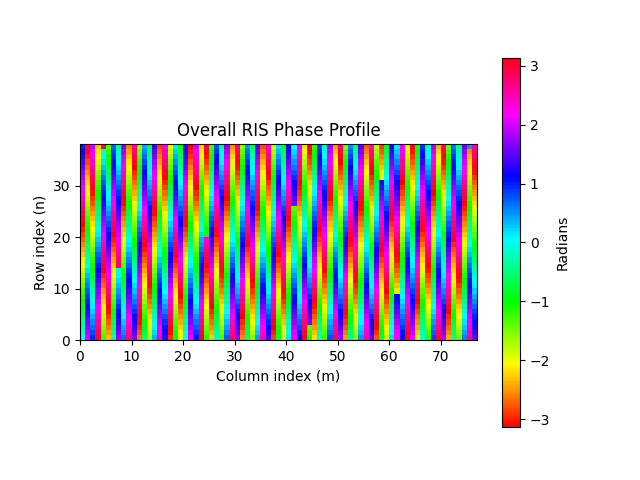
Fig. 5: Overall phase profile with 2D visualization